

Aploda.com – The child lock and safety stop features on electric standing desks are essential protective mechanisms designed to prevent unauthorized operation, accidental injury, or mechanical damage by disabling the control panel and reversing movement upon detecting resistance.
Understanding the Necessity of Safety Features
Electric standing desks have become a staple in modern home offices, but their motorized nature introduces potential risks, especially in households with young children or pets. A desk moving at full speed can inadvertently crush objects left underneath or trap fingers in the frame. Manufacturers have integrated specific safety protocols—most notably the child lock and the anti-collision system—to mitigate these hazards effectively.
The child lock function is a digital safeguard. When activated, it renders the physical buttons on the handset unresponsive. This prevents children from playing with the height settings, which could lead to pinched fingers or unstable desk configurations. The safety stop, often referred to as the anti-collision or gyro sensor feature, is an active monitor that detects sudden resistance during movement, forcing the motor to stop and retract slightly to prevent impact.
How the Child Lock Works
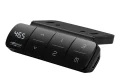
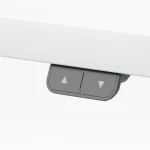
Most modern standing desk controllers utilize a specific key combination to toggle the child lock. While the exact sequence varies by brand, it typically involves holding down a designated button—such as the “M” (Memory) button or the “Down” arrow—for three to five seconds until a “LOC” or “L” symbol appears on the digital display. Once locked, the desk remains frozen in its current position regardless of button presses.
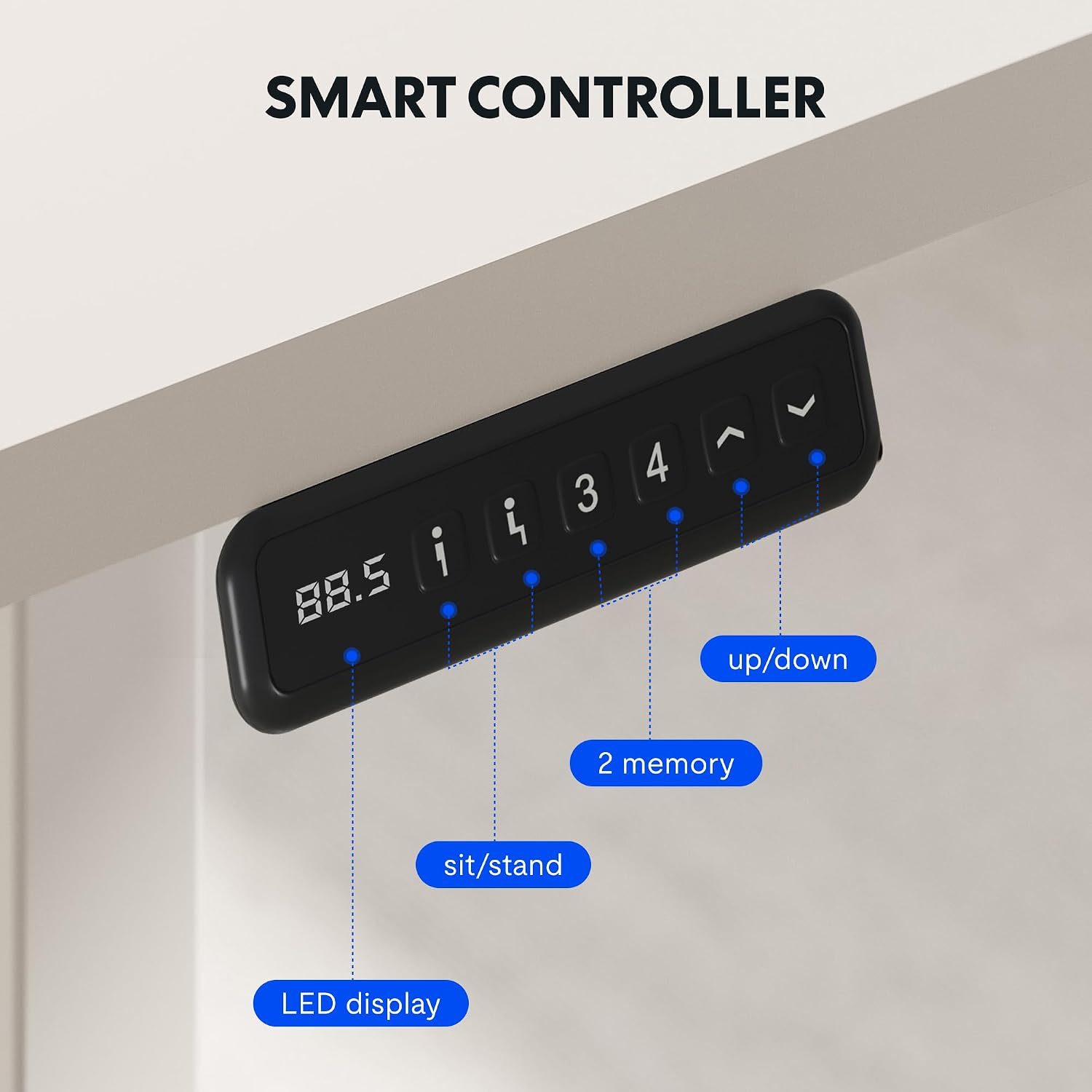
📷 Photo by manuals.plus
This feature is not merely for toddlers; it is also useful for pet owners. Cats and dogs are often attracted to the hum of the motors, and a curious paw stepping on a button can accidentally lower the desk onto a person’s legs or expensive equipment. By engaging the lock after each session, you ensure the desk remains a static, safe piece of furniture.
Safety Stop: The Mechanics of Anti-Collision
Read also: Step Counter Accuracy on Under Desk Treadmills: Fitness Tracker Tips
The safety stop feature relies on built-in gyroscopes or current-sensing technology. When the desk is moving, the controller constantly monitors the electrical current drawn by the motors. If the desk hits an obstruction, the physical resistance causes the motor to work harder, resulting in a spike in electrical current. The controller detects this spike within milliseconds and immediately halts the motion, often reversing the direction by an inch or two.
It is important to note that these sensors are calibrated to specific sensitivity levels. If your desk is too sensitive, it may stop moving due to uneven weight distribution or minor vibrations. Conversely, if the sensitivity is too low, it might not detect a soft object, like a laptop bag or a pillow, in time. Regularly testing this feature is a critical part of maintaining a safe workstation.
Comparison of Safety Features
| Feature | Primary Function | Activation Method | Ideal Scenario |
|---|---|---|---|
| Child Lock | Prevents unauthorized input | Long-press button combo | Homes with small children/pets |
| Anti-Collision | Prevents physical damage | Automatic sensor detection | Preventing crushed objects under desk |
| Thermal Protection | Prevents motor burnout | Automatic timeout | Heavy duty, frequent adjustments |
Step-by-Step Guide to Testing Your Desk Safety
Performing a routine safety check ensures that your desk’s automated protection systems are functioning as intended. Follow these steps to verify your controller settings:
- Clear the area underneath your desk completely to ensure nothing is in the path of the legs.
- Locate your controller’s manual to identify the specific button combination required to engage the “Lock” mode.
- Press and hold the required buttons until the display confirms the lock status; attempt to move the desk to verify it is unresponsive.
- Unlock the desk and place a soft object, such as a thick foam block, on the floor directly in the path of the desk leg.
- Lower the desk slowly while keeping your hand off the control panel to see if it detects the object and reverses automatically.
- If the desk does not stop, consult your user manual to adjust the sensitivity settings, typically found in the “S” or “Settings” menu of the controller.
Common Mistakes and Best Practices
One of the most frequent mistakes users make is ignoring the sensitivity settings of their desk. Many people assume the anti-collision feature is “plug and play” and never verify if it works with the specific weight load of their setup. If you have a heavy monitor arm or a large desktop surface, the desk’s center of gravity changes, which can interfere with the sensitivity of the internal gyroscope.
Another common oversight is failing to secure cables. Even if the desk has a safety stop, dangling wires can become tangled in the lifting columns. Always use cable management trays or clips to keep cords tucked away. A tangled wire can sometimes mimic the resistance of an obstruction, causing the desk to trigger a false safety stop, or worse, the wire could be severed by the desk’s metal components.
Finally, avoid overloading your desk. Most electric desks have a maximum weight capacity, usually between 150 to 300 pounds. Exceeding this limit puts immense strain on the motors, which can cause the controller to malfunction or trigger “E” (Error) codes that require a full factory reset. Always distribute weight evenly across the desk surface to maintain the integrity of the lift mechanism.
Frequently Asked Questions
Q: My desk displays an “E” error code and won’t move. What should I do?
A: Most error codes indicate a need for a reset. Unplug the desk from the power outlet for at least 30 seconds, plug it back in, and perform the manual reset procedure (usually holding the “Down” button until the desk hits the lowest point and bounces back slightly).
Q: Can I turn off the anti-collision feature completely?
A: Most manufacturers do not recommend disabling this feature, as it is your primary defense against equipment damage. However, some advanced controllers allow you to adjust the sensitivity level from “Low” to “High” if you find it is triggering too often.
Q: Does the child lock reset if the power goes out?
A: It depends on the model. Many controllers retain their settings in non-volatile memory, meaning the lock status will persist even after a power outage. Always verify the lock status after a power surge or outage for peace of mind.
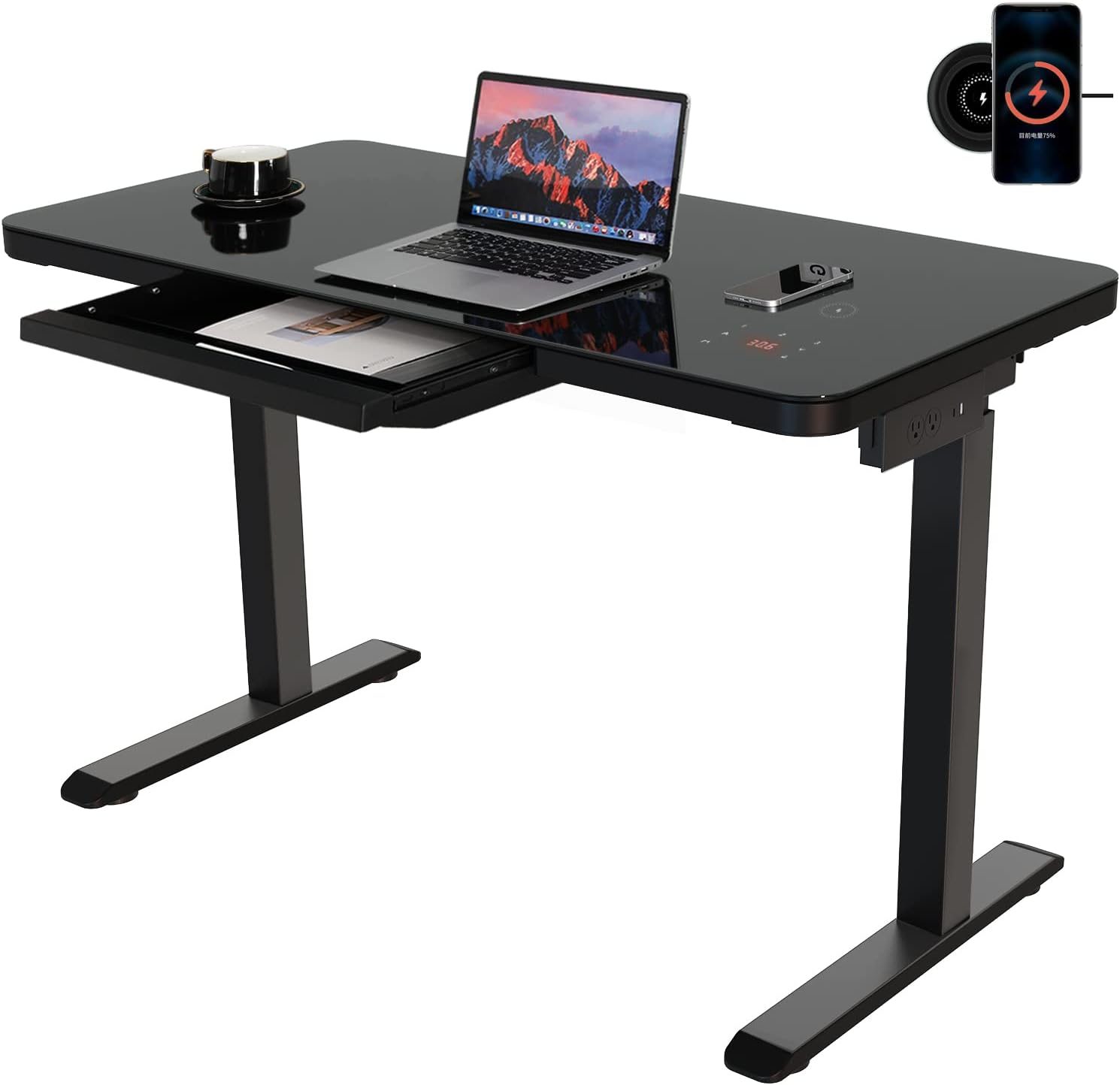
📷 Photo by ubuy.co.in
By understanding and utilizing these safety features, you can extend the lifespan of your desk while ensuring that your workspace remains a secure environment. Treat your controller’s safety settings with the same importance as you would any other piece of electronic equipment in your home.
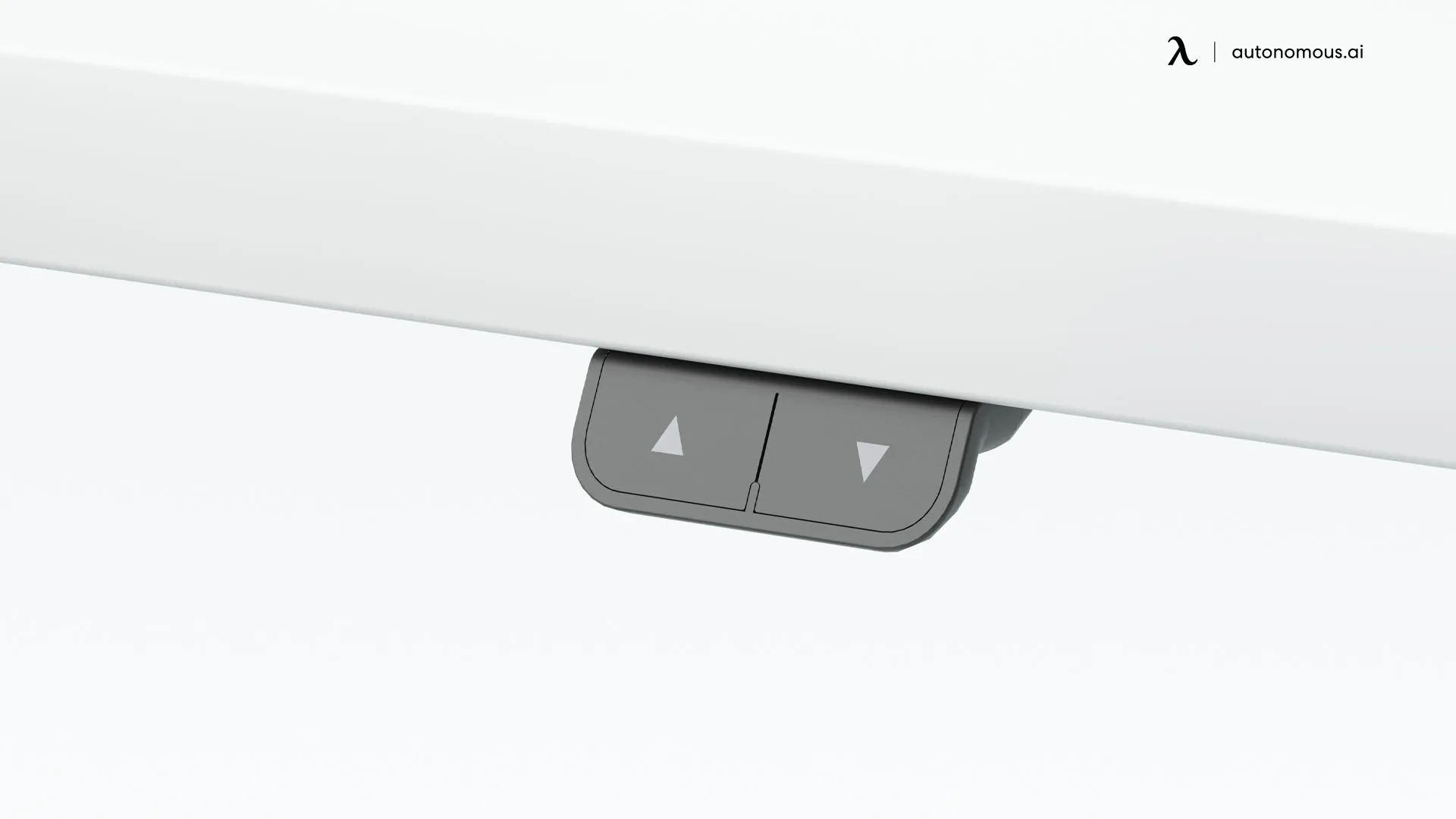
📷 Photo by autonomous.ai