

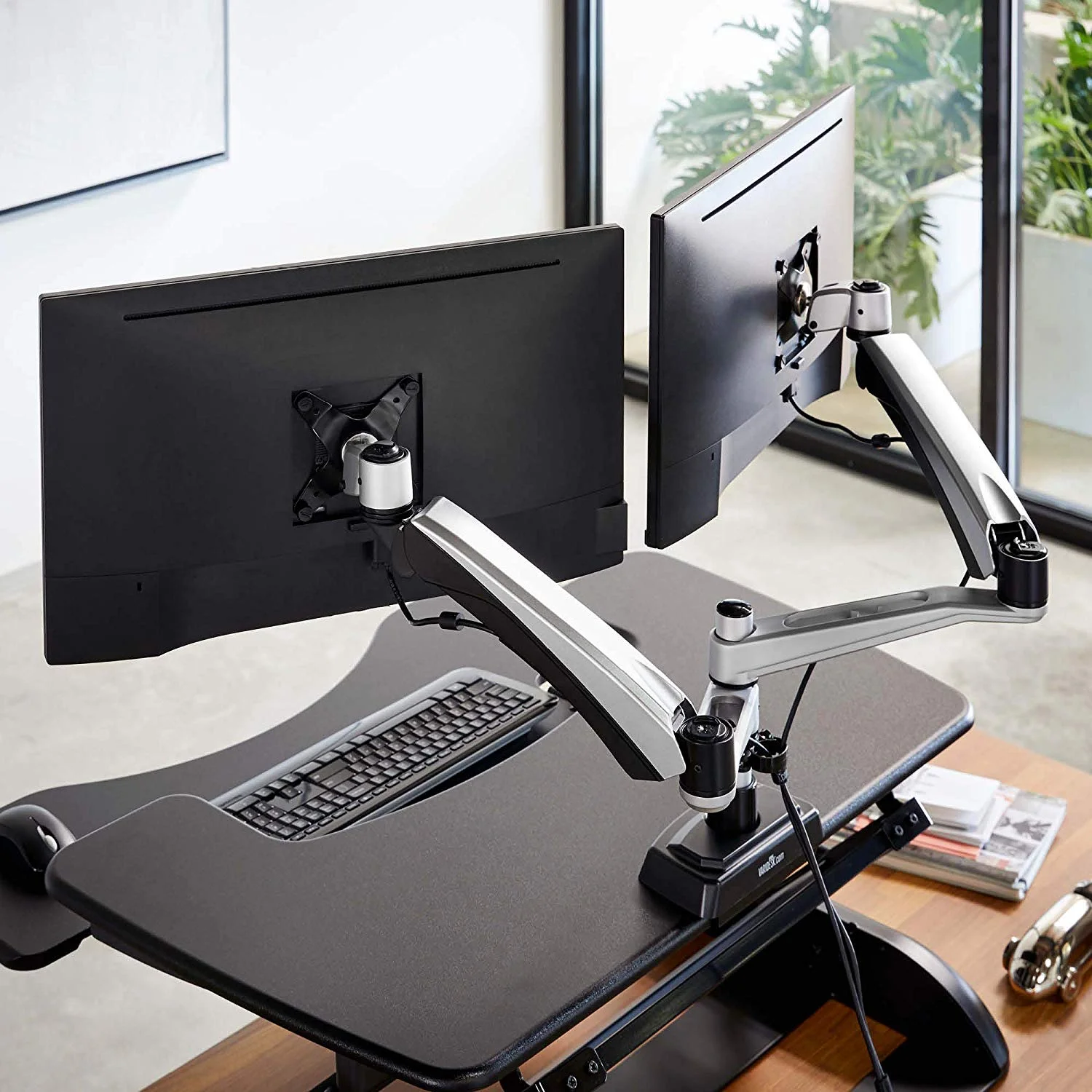
Aploda.com – Setting up an ergonomic monitor arm on an electric standing desk requires prioritizing cable management slack and ensuring the desk clamp is secured to a structurally sound section of the tabletop to prevent wobbling or tipping during height transitions.
Understanding the Stability Requirements
The primary challenge when pairing a monitor arm with an electric standing desk is the constant movement. Unlike a static desk, a standing desk moves vertically, which introduces vibrations and changes the tension requirements of your cables. Before you begin the installation, you must ensure your desk surface can handle the concentrated pressure of a clamp mount.
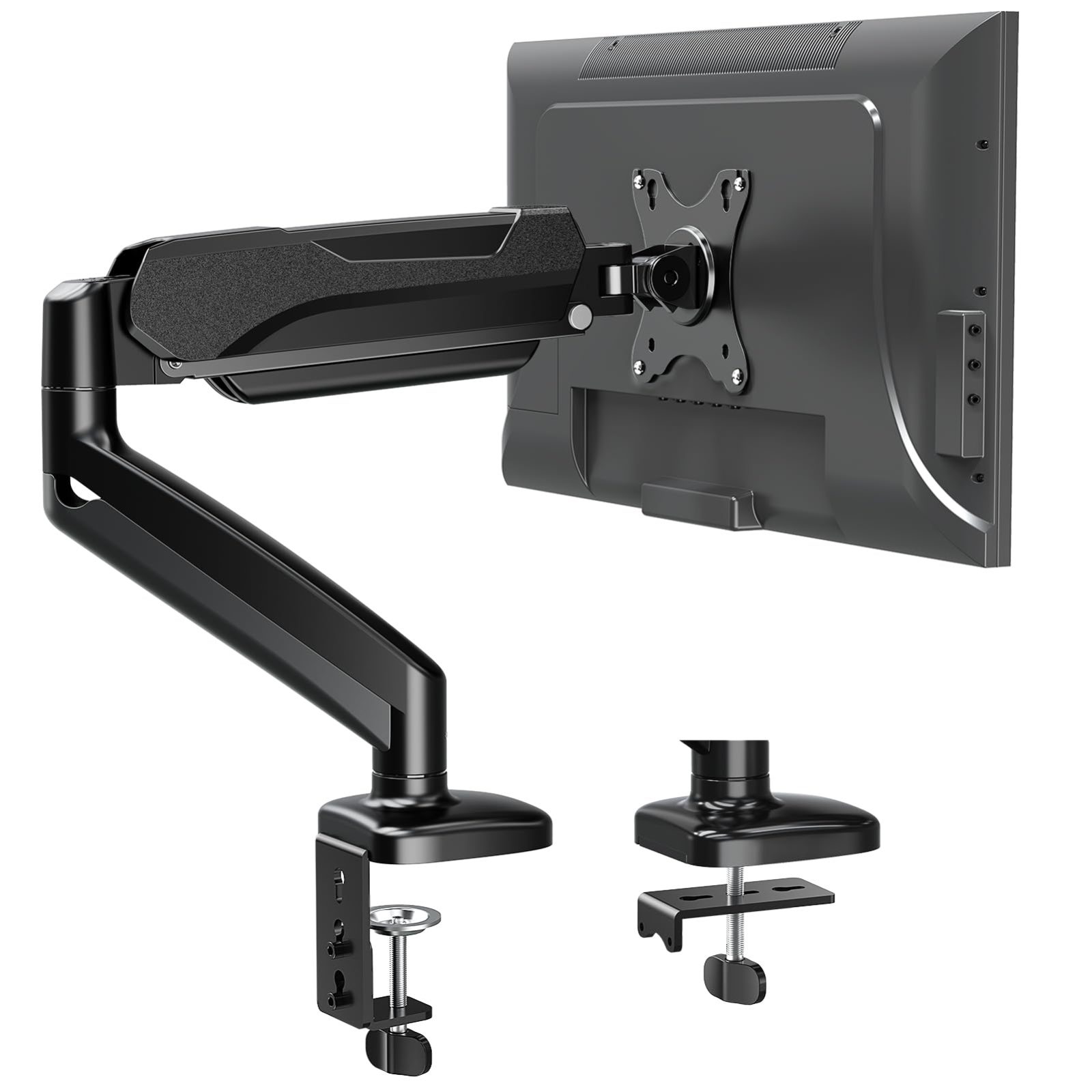
Most electric standing desks use tabletops made of particleboard, MDF, or solid wood. If your desk has a honeycomb core or a thin laminate finish, the localized pressure from a monitor arm clamp can crush the material over time. Always check the underside of your desk for a metal frame or support beam that might obstruct the clamp. If the frame blocks the clamp, you may need a grommet mount or a C-clamp extender plate to distribute the weight more evenly.
Tools and Preparation Checklist
Before you commit to drilling or clamping, gather your materials to ensure a smooth installation process. A well-prepared workspace prevents common mistakes like misaligned monitors or loose mounts that creep over time.
📷 Photo by nellisauction.com
| Item | Purpose |
|---|---|
| Allen Wrench/Hex Key | Adjusting tension and tightening bolts. |
| Cable Ties/Velcro | Securing slack for desk height travel. |
| Leveling Tool | Ensuring the monitor is perfectly horizontal. |
| Reinforcement Plate | Distributing clamp pressure on thin surfaces. |
Step-by-Step Installation Guide
Follow these steps to ensure your setup is both ergonomic and durable during your standing desk’s daily operation:
- Clear your desk surface entirely to allow for easy maneuverability and access to the back edge of the tabletop.
- Attach the monitor arm base to the desk. If using a clamp, ensure the bolt is tightened firmly against the desk frame or the table itself; if the surface is soft, place a metal plate between the clamp and the wood to prevent damage.
- Mount the monitor to the VESA plate. It is safer to do this while the arm is already attached to the desk, provided you have a second pair of hands to hold the screen steady.
- Adjust the tension of the arm. Most gas-spring arms have a screw on the top or side that dictates how much weight it can support. Adjust this until the monitor stays in place without drifting upward or sagging downward.
- Perform the cable management test. Lower your desk to its lowest setting and raise it to its highest. Ensure that the cables running from your monitor to your PC have enough slack to move without pulling on the ports or the arm joints.
Common Mistakes to Avoid
A frequent error is failing to account for cable tension. Many users tighten their cables too snugly to the monitor arm, which creates a “tugging” effect when the desk is raised. This can lead to damaged HDMI or DisplayPort cables and, in severe cases, damage to the monitor’s input ports. Always leave a loop of excess cable at every pivot point of the arm.
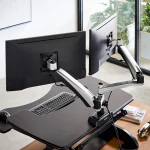
Another common mistake is neglecting the weight limit of the arm. Check the weight of your monitor without the stand. If you are using a dual-monitor setup, ensure that the arm is rated for the combined weight of both screens. Overloading an arm will cause the gas spring to fail prematurely, leading to a monitor that refuses to stay at your desired eye level.
Ergonomic Positioning for Health
Read also: Flat Folding Under Desk Treadmill: Best Storage Solutions for Small Apartments
📷 Photo by nellisauction.com
Once the physical installation is complete, fine-tune the ergonomics. The top of your monitor screen should be at or slightly below eye level. When sitting or standing, you should be able to look straight ahead at the middle of the screen without tilting your neck up or down. If you find yourself leaning forward to read text, increase the font size or pull the monitor arm slightly closer to your face rather than adjusting your posture.
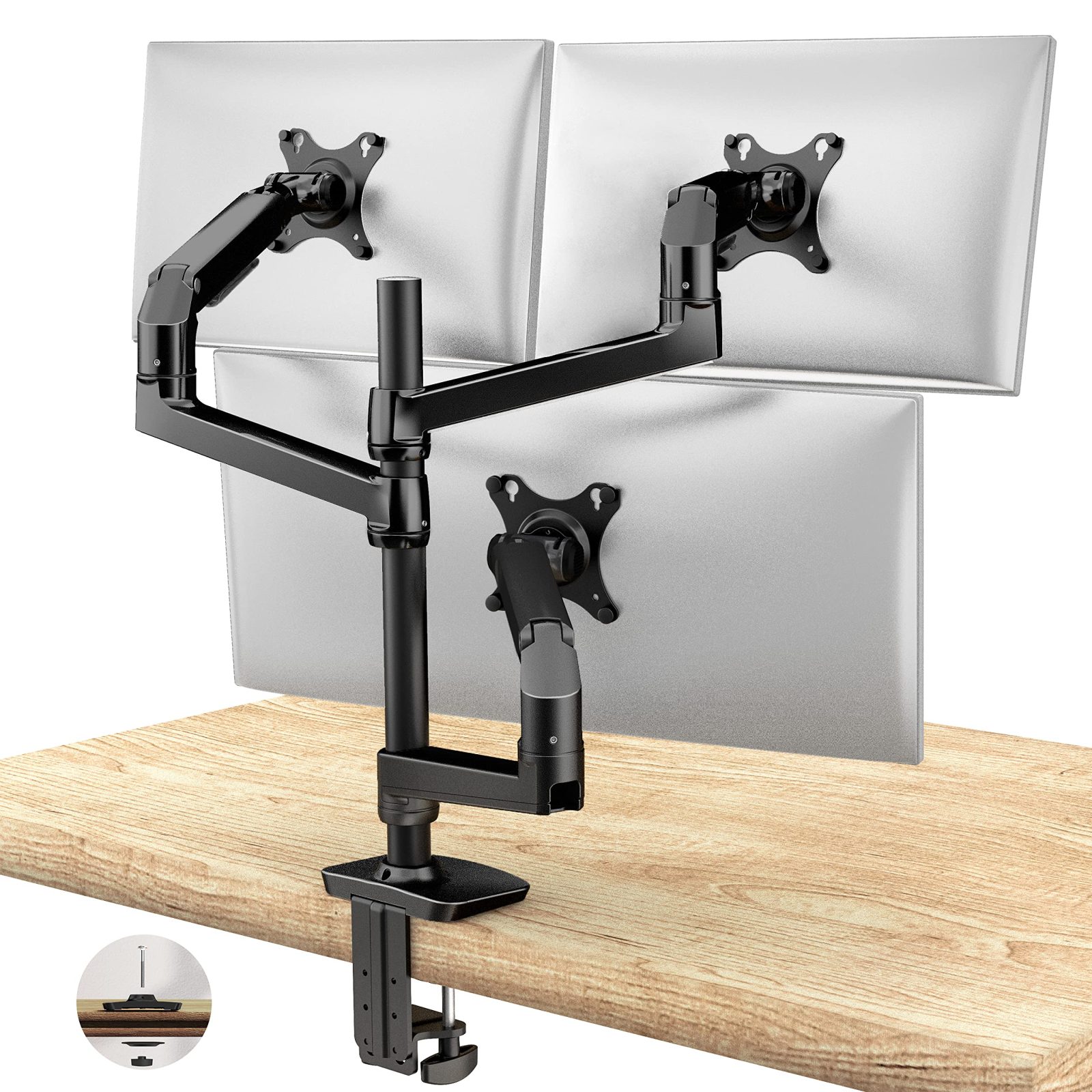
Your distance from the screen should be roughly an arm’s length away. If you use multiple monitors, place the primary monitor directly in front of you. The secondary monitor should be placed at an angle, effectively creating a slight arc that follows the natural movement of your eyes. This prevents excessive neck rotation throughout the workday.
Frequently Asked Questions
Q: Can I mount a monitor arm on a desk with a thin glass top?
A: It is generally not recommended to clamp a monitor arm onto glass, as the concentrated pressure can cause the glass to shatter. If you must use a glass desk, look for a model that utilizes a dedicated grommet hole specifically reinforced for mounting hardware, or opt for a freestanding monitor stand instead.
Q: How do I know if my monitor is VESA compatible?
A: Check the back of your monitor for four screw holes arranged in a square or rectangular pattern. If you see these holes, measure the distance between them; common sizes are 75x75mm or 100x100mm. If your monitor lacks these holes, you may need a non-VESA adapter bracket.
Q: Will the vibrations from typing affect the monitor arm?
A: Some monitor arm wobble is normal, especially on standing desks at high elevations. To minimize this, ensure all bolts are tightened to the maximum recommended torque and consider placing your desk against a wall to provide additional lateral stability.
Maintaining your setup involves periodic checks. Every three to six months, perform a quick inspection of the clamp and the tension screws. Temperature changes and daily movement can cause bolts to loosen slightly, so a quick tightening session will ensure your equipment remains safe and your posture stays protected.
📷 Photo by deskadvisor.org