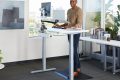



Aploda.com – The optimal eye level for a monitor on an electric standing desk is achieved when the top third of your screen sits at or slightly below your natural eye level, ensuring your gaze is directed downward at a 15 to 20-degree angle to prevent neck strain.
📷 Photo by amazon.ca
Maintaining proper ergonomics while using an electric standing desk is not just about alternating between sitting and standing; it is about calibrating your environment to support the natural curvature of your spine. When your monitor is positioned incorrectly, you inadvertently invite chronic musculoskeletal issues, commonly referred to as “tech neck.” By aligning your screen correctly, you reduce the workload on your trapezius muscles and cervical spine, allowing for longer periods of comfortable productivity.
The Mechanics of Optimal Viewing
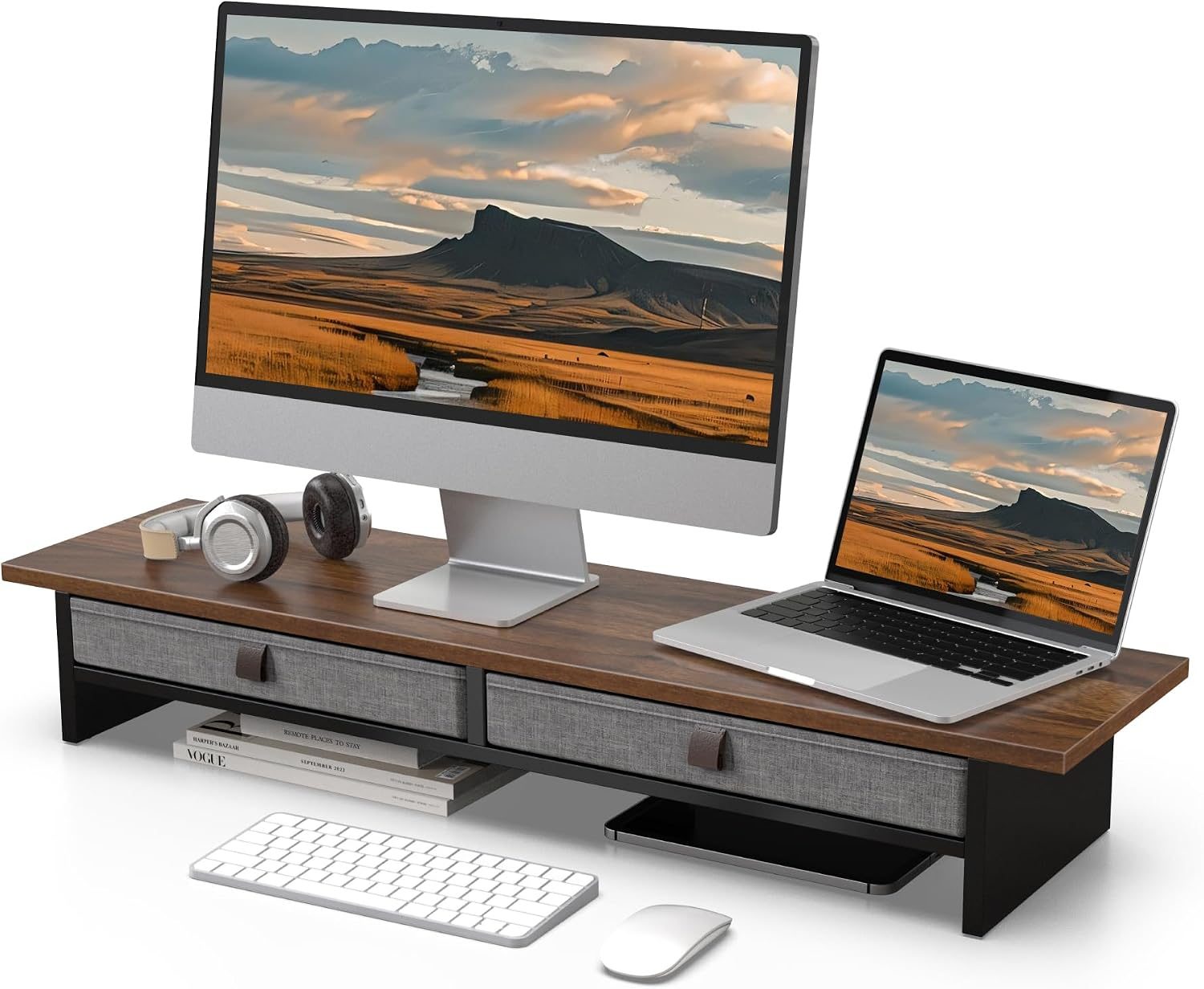
The human neck is designed to support the weight of the head in a neutral position. When you look straight ahead, your neck is at its most relaxed state. However, monitors are often placed too high, forcing the neck into constant extension, or too low, forcing the head into a downward slump. An electric standing desk offers the unique advantage of adjustability, but this flexibility is only beneficial if you know your specific ergonomic set-points.
📷 Photo by amazon.ca
Distance is just as critical as height. While height prevents neck strain, distance prevents eye fatigue and repetitive strain injuries in the shoulders. A general rule of thumb is to place the monitor at an arm’s length away from your face. If you find yourself leaning forward to read small text, you should increase the font size on your operating system rather than moving the monitor closer, which disrupts your ergonomic posture.
Ergonomic Comparison for Desk Setup
| Feature | Recommended Setting | Ergonomic Benefit |
|---|---|---|
| Viewing Angle | 15 to 20 degrees downward | Reduces neck extension |
| Viewing Distance | 20 to 30 inches (50-75 cm) | Minimizes eye strain |
| Monitor Height | Top third at eye level | Promotes neutral spine |
| Screen Tilt | Slightly upward (5-10 degrees) | Prevents glare and reflection |
Step-by-Step Calibration Guide
Follow these steps to calibrate your electric standing desk setup from scratch. This process should be performed every time you switch between standing and sitting modes, as your body mechanics shift slightly with your footwear and posture.
- Clear your desk surface to allow for easy movement of the monitor stand or arm.
- Sit or stand in your desired position with your feet flat on the floor and your back against the chair (if sitting) or your weight distributed evenly (if standing).
- Extend your arm forward; your fingertips should just touch the screen surface. Adjust the monitor depth accordingly.
- Close your eyes and relax your neck. Open your eyes; where your gaze naturally lands should be the top third of the screen.
- Adjust the height of your electric desk or the monitor arm until the top third of the screen aligns with your natural eye level.
- Tilt the monitor slightly upward so that the bottom of the screen is closer to you than the top, reducing glare from overhead lights.
Common Mistakes and Their Consequences
A frequent error users make is forgetting that monitor height must change when transitioning from a seated position to a standing position. Even if your desk height adjusts, the angle of your gaze may shift depending on how you carry yourself while standing. If you notice yourself locking your knees or slouching after 20 minutes of standing, it is often a sign that your monitor height is forcing you into a compensatory posture.
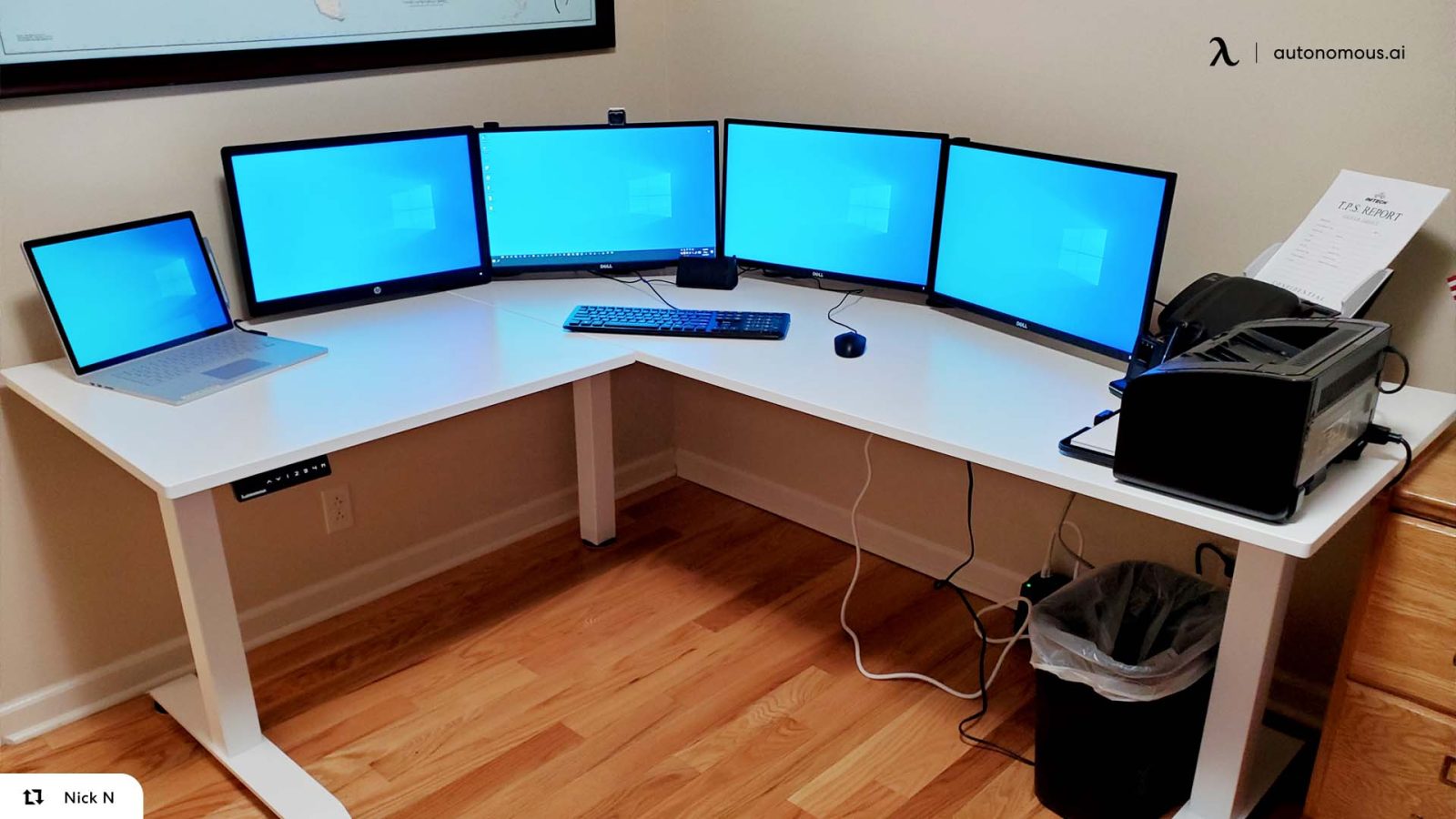
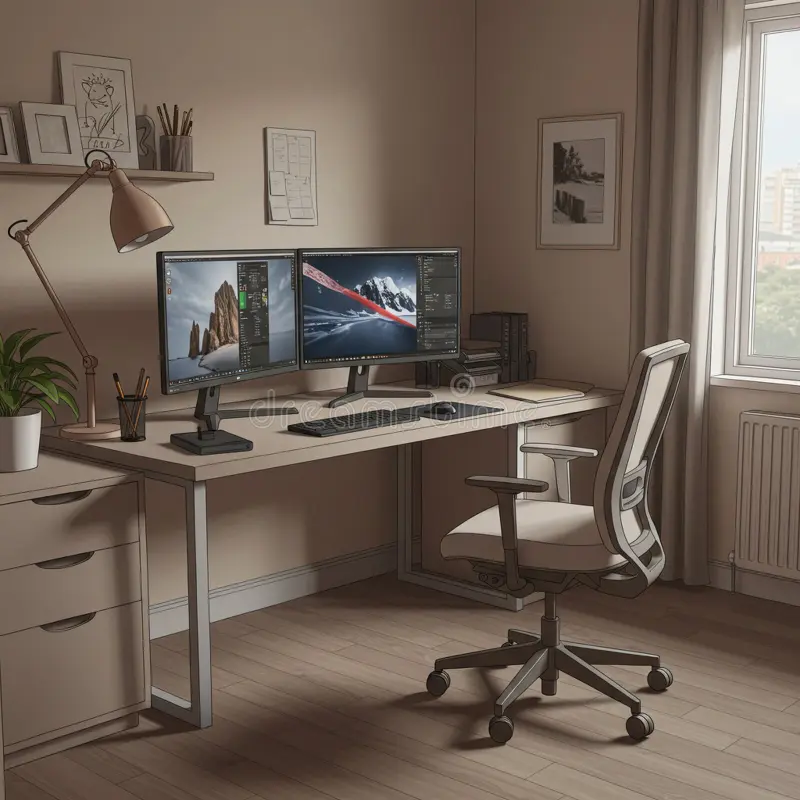
Another mistake is the use of multiple monitors without proper synchronization. When using a dual-monitor setup, both screens should be positioned in a slight arc. If one is your primary monitor, it should be dead-center in front of you. The secondary monitor should be placed to the side, but at the same height, to avoid constant vertical head movement, which is far more taxing on the neck than horizontal movement.
The Role of Peripheral Vision
Proper eye level also considers the width of your field of vision. Monitors that are too wide or too close force your eyes to scan excessively, leading to dry eyes and headaches. By maintaining the recommended distance of 20 to 30 inches, you allow your peripheral vision to take in more of the screen, reducing the need for constant, jerky eye movements. If you use an ultrawide monitor, ensure the center of the curve is perfectly aligned with your nose bridge.
Addressing Potential Risks
Ignoring these ergonomic standards leads to more than just temporary discomfort. Over months and years, poor monitor placement causes muscle imbalances where the chest muscles become tight and the upper back muscles become weak. This leads to rounded shoulders and a forward head posture that is difficult to reverse. Always prioritize the “neutral” position: ears aligned with shoulders, and shoulders aligned with the hips.
Frequently Asked Questions
Q: Should I use a monitor arm or the stock stand?
A: A monitor arm is highly recommended for electric standing desks because it offers far more flexibility in depth and angle adjustments than a standard fixed stand, allowing for precise ergonomic alignment.
Q: Does my prescription eyewear affect monitor distance?
A: Yes, if you wear progressive lenses, you may need to position your monitor slightly lower than standard to view through the intermediate zone of your lenses without tilting your head back.
Q: How do I know if my monitor is too far away?
A: If you find yourself squinting or leaning your head toward the screen, it is too far. If you cannot read text comfortably at 30 inches, adjust your screen resolution or zoom settings instead of moving the monitor closer.
📷 Photo by dreamstime.com
In summary, the goal is to create a workspace that conforms to your body, not the other way around. By investing time in the initial setup and making micro-adjustments throughout the day, you protect your long-term health while maximizing the utility of your electric standing desk.
📷 Photo by autonomous.ai